What it shows
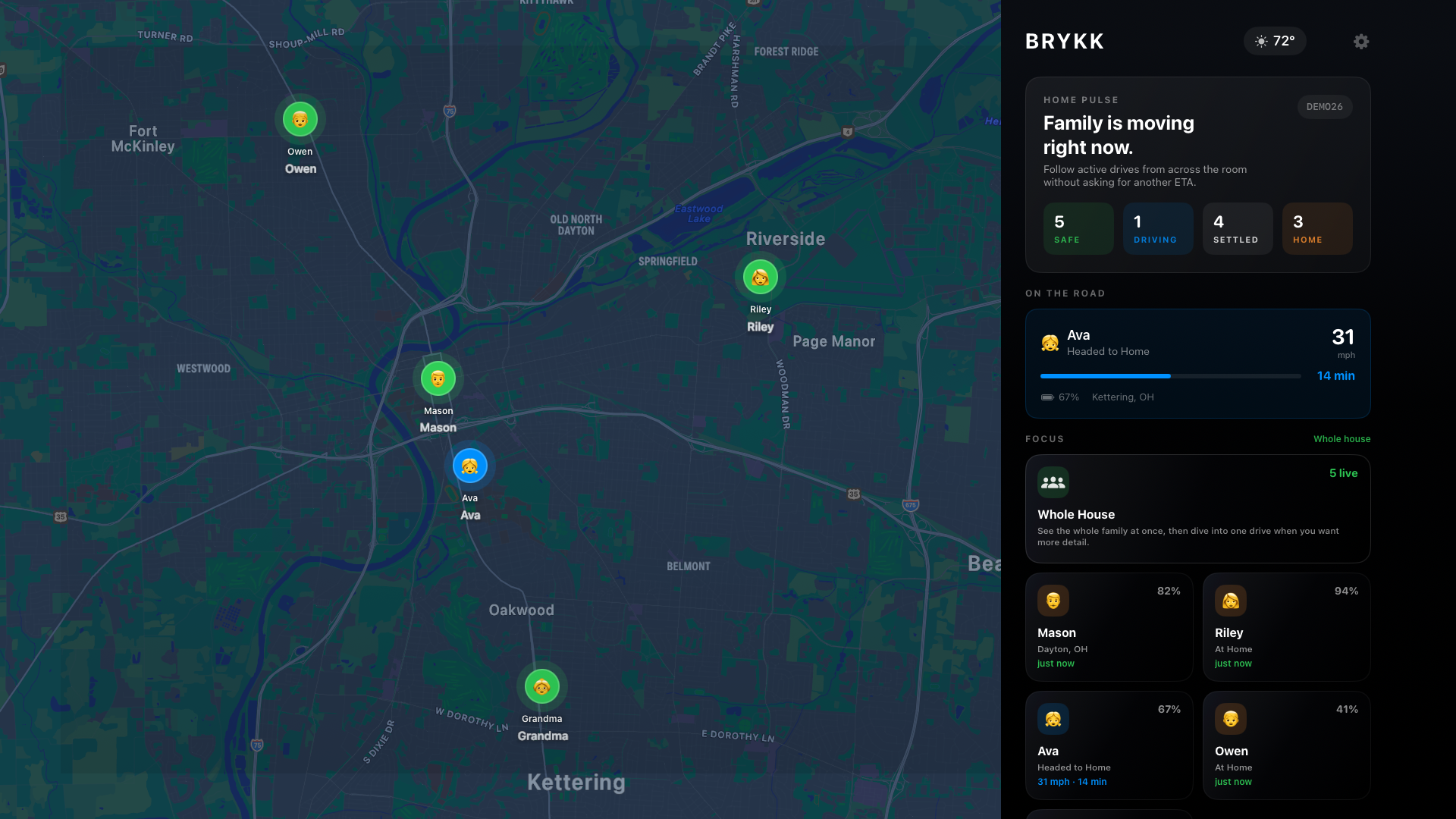
The Apple TV app currently gives you a clean living-room dashboard with:
- A full-screen family map with live member locations
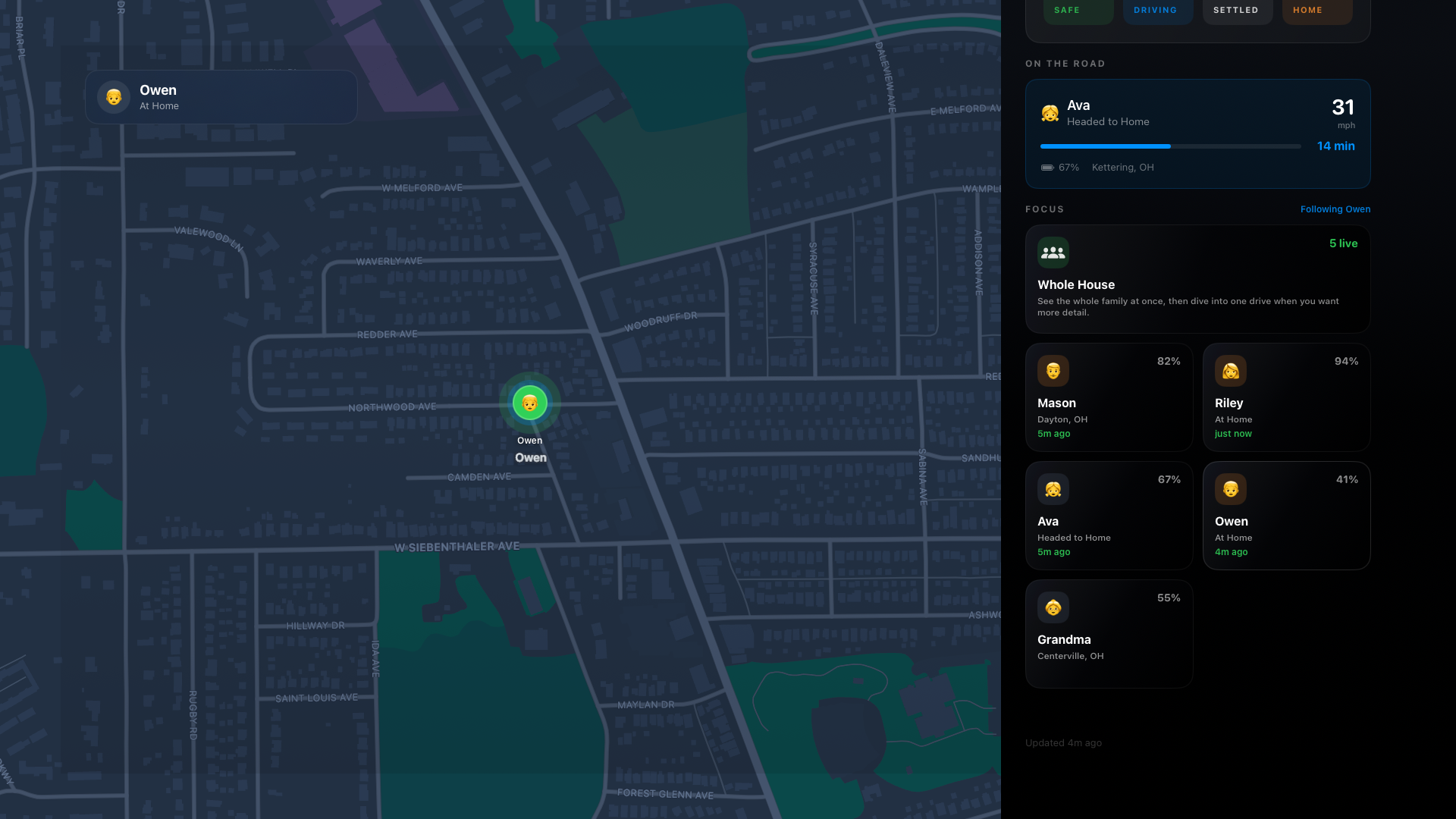
- A right-side rail for active trips, ETAs, battery, and quick family status
- A top pulse state such as “Everyone's Safe” or active trip count
- Custom BRYKK alert banners for departures, arrivals, almost-home, SOS, and crash events
- Weather and last-updated status
What it looks like
The main Apple TV surface is the whole-house map. When you focus a person, BRYKK tightens into that member and keeps the right rail anchored to the same story.
Setup
1
Install BRYKK on Apple TV
On your Apple TV, open the App Store → search for BRYKK → install. The TV app is free.
2
Enter your family code on the TV
Open BRYKK on the TV and choose Enter Family Code. Type the same 6-character family code your iPhone family uses. The TV stores that code locally and reads your family from CloudKit in read-only mode.
3
Set it where the house can use it
BRYKK on Apple TV works best as a shared family screen. Put it where the household naturally glances — kitchen, den, or living room — and set the Apple TV sleep timer the way you want for that space.
Use cases
- Kitchen monitor — glance at the family map while cooking
- Living room peace-of-mind — see when teens get home from school without picking up your phone
- Family emergency display — when someone triggers SOS or crash, the TV throws a bold BRYKK banner over whatever dashboard is on screen
How it updates
Apple TV is a read-only CloudKit dashboard. It refreshes on a steady polling cycle instead of trying to act like a second phone. That makes it calm, dependable, and safe for a shared household screen.
💡
Think of Apple TV as the household view: a big-screen glance at who is out, who is home, and who is on the way.