Get your family on BRYKKwithout fumbling through beta nonsense.
Install TestFlight, open BRYKK, allow the right permissions, and get your people joined. This page is the clean path for iPhone, iPad, and Apple Watch.
The cleanest path if you are new to BRYKK.
This is the route most people need. Install Apple's beta app once, install BRYKK through it, then finish your family setup inside the app.
Install TestFlight first
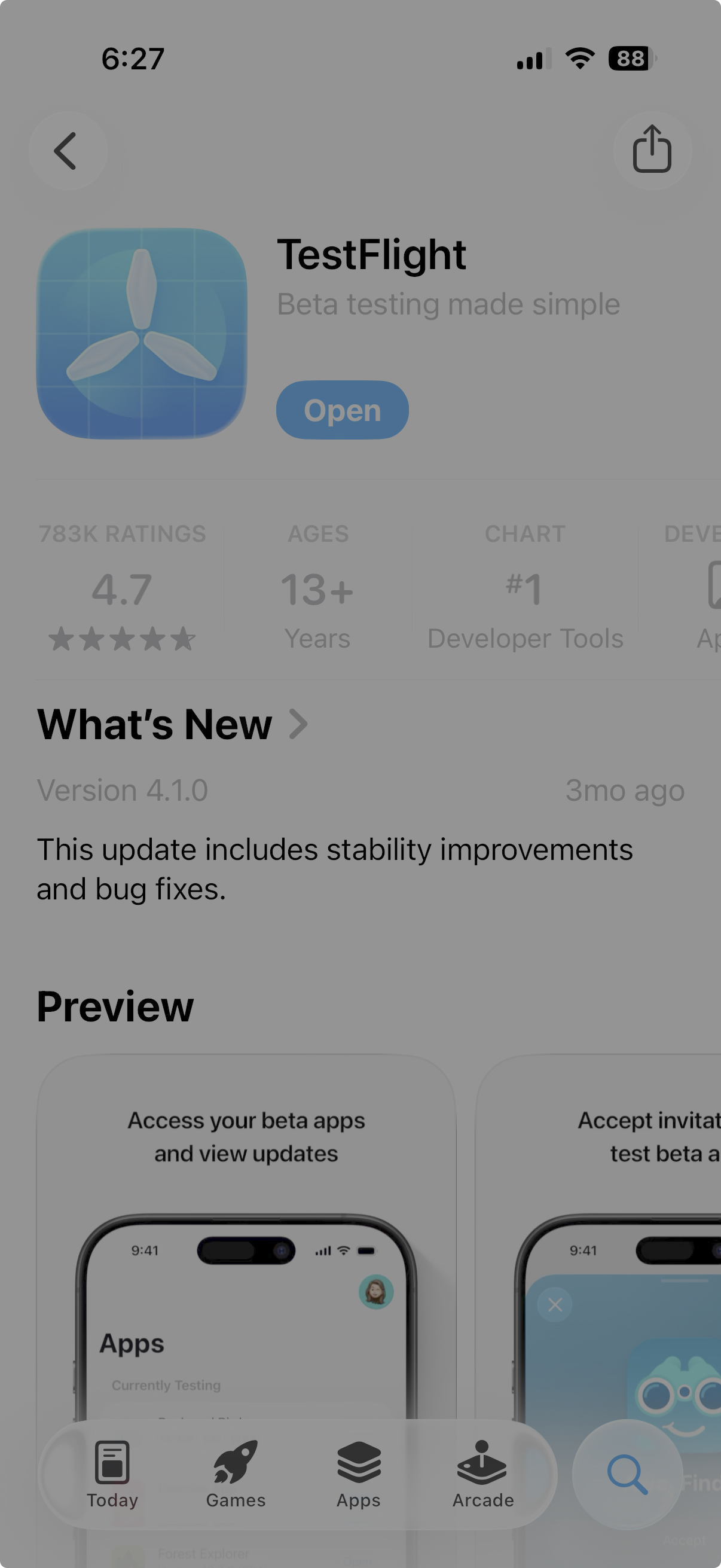
TestFlight is Apple's official beta app. BRYKK uses it until the App Store launch. If you tap the BRYKK link before installing TestFlight, Apple will throw you into an invitation dead-end.
Install BRYKK through TestFlight
Once TestFlight is on your device, open the BRYKK beta link. TestFlight will show the install screen immediately. Tap Install, then Open.
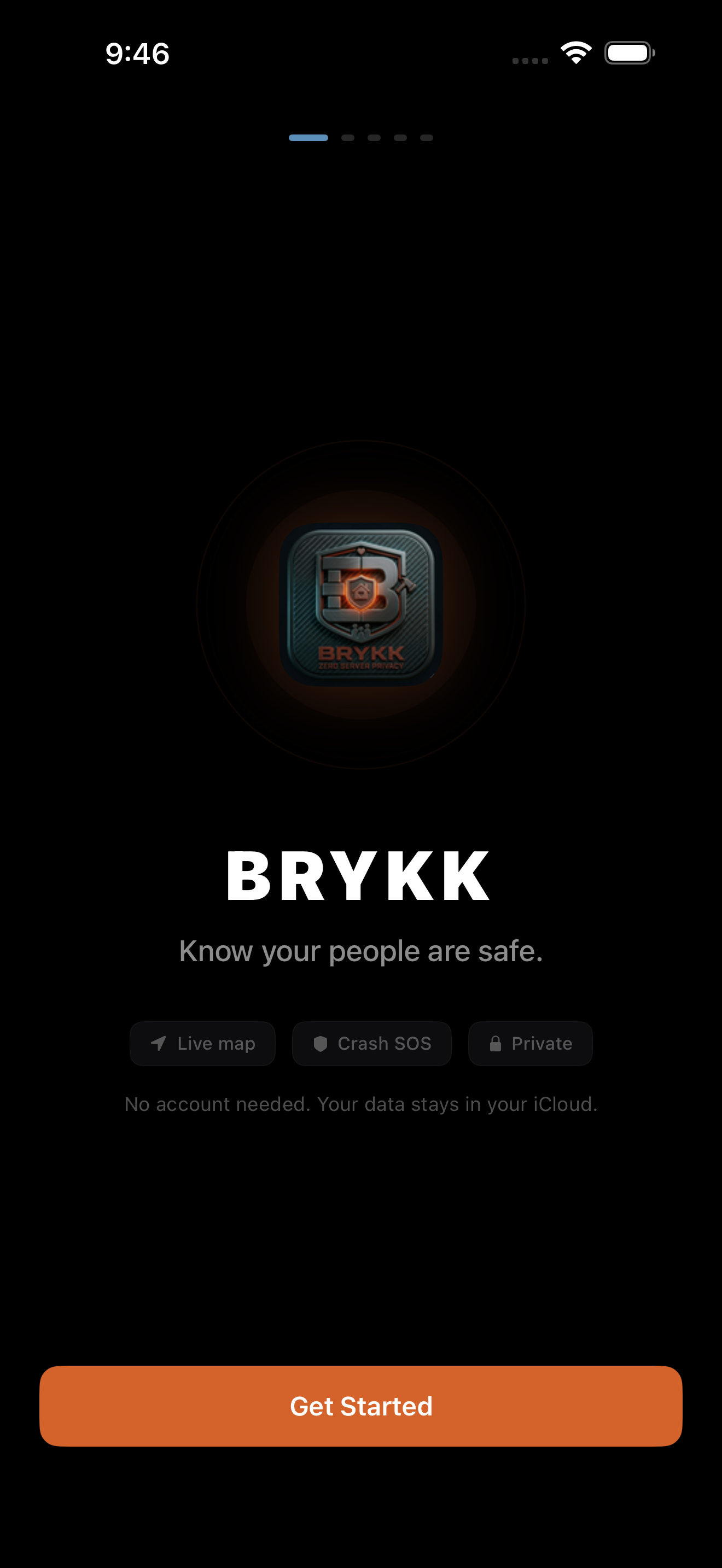
Set your name and choose your avatar
BRYKK is fast to read when your family feels recognizable at a glance. Pick the name and emoji your people will actually understand instantly.
Allow the permissions that make BRYKK work
Always Location, Notifications, and Motion are not optional if you want arrivals, departures, crash detection, and real trip awareness to work properly. Microphone, Calendar, and Health are feature-based extras.
If your family already has BRYKK, use their code and be done.
You do not need to overthink this part. Once BRYKK is installed, the person who already runs the family can give you the code and you will appear on the map.
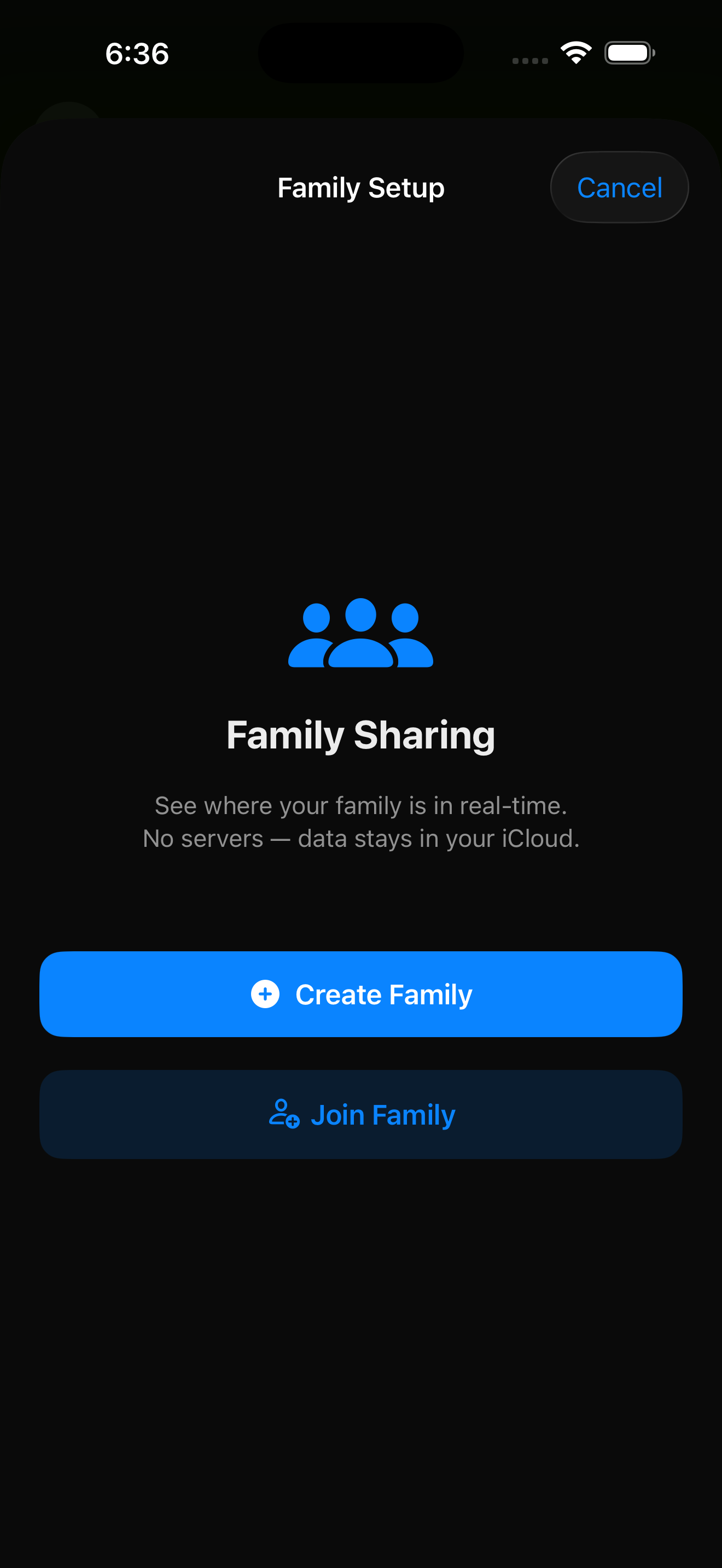
Open BRYKK and choose Join Family
If someone in your house already has BRYKK working, do not create a second family. Choose Join Family and use their code.
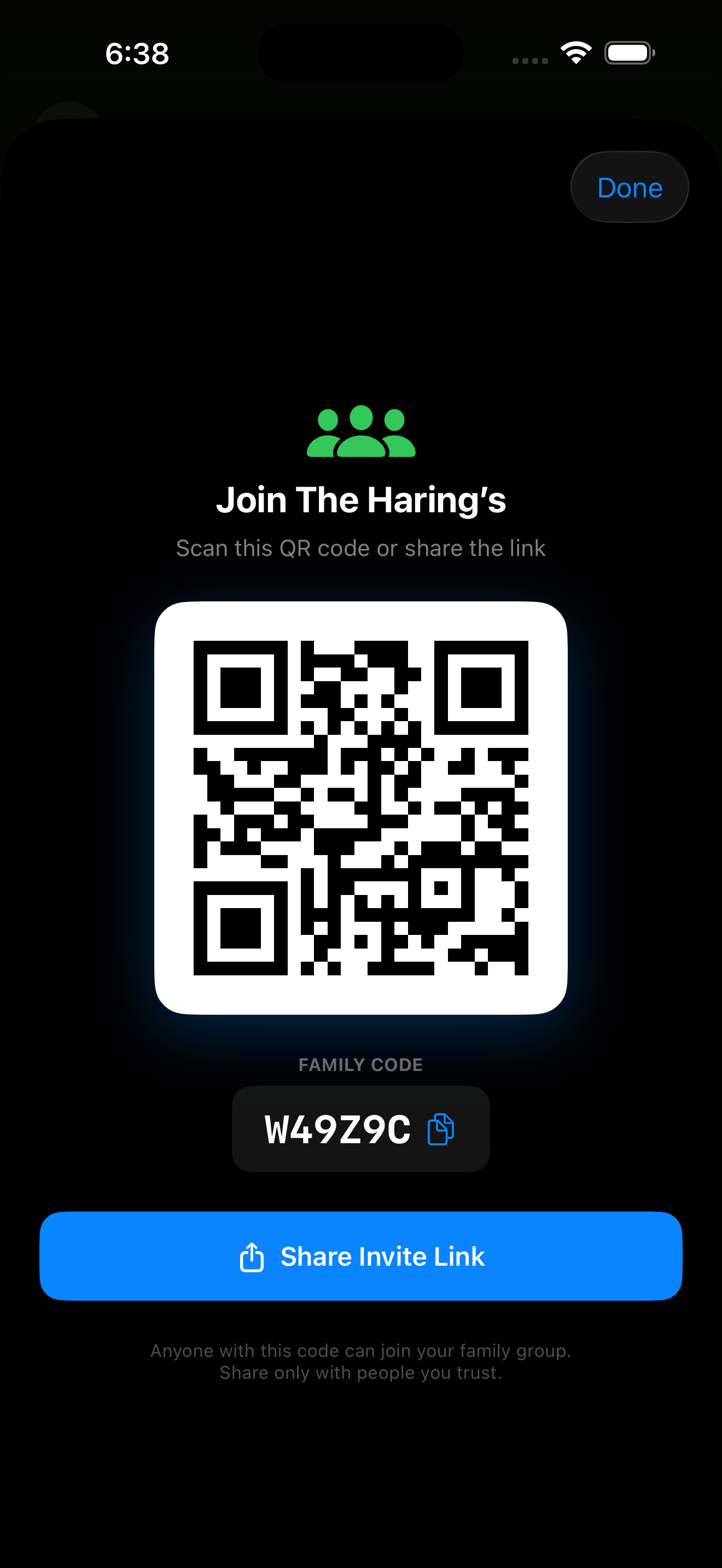
Enter the 6-character family code
That code lives inside BRYKK → Settings → Family on the family organizer's phone. Enter it once and your setup is effectively finished.
Add your places before you forget
Home is table stakes. After that, add the places that actually matter in your real life: school, Nana's, work, daycare, the second house, the field, the gym.
If Nathan invited you by email, use Apple's invite path.
Some people come in through a direct TestFlight invitation instead of the public link. The result is the same once BRYKK is installed.
Install TestFlight if you do not already have it.
Open the email from Apple that says you were invited to test BRYKK.
Tap View in TestFlight, then install BRYKK.
Finish the same in-app profile and family setup as everyone else.
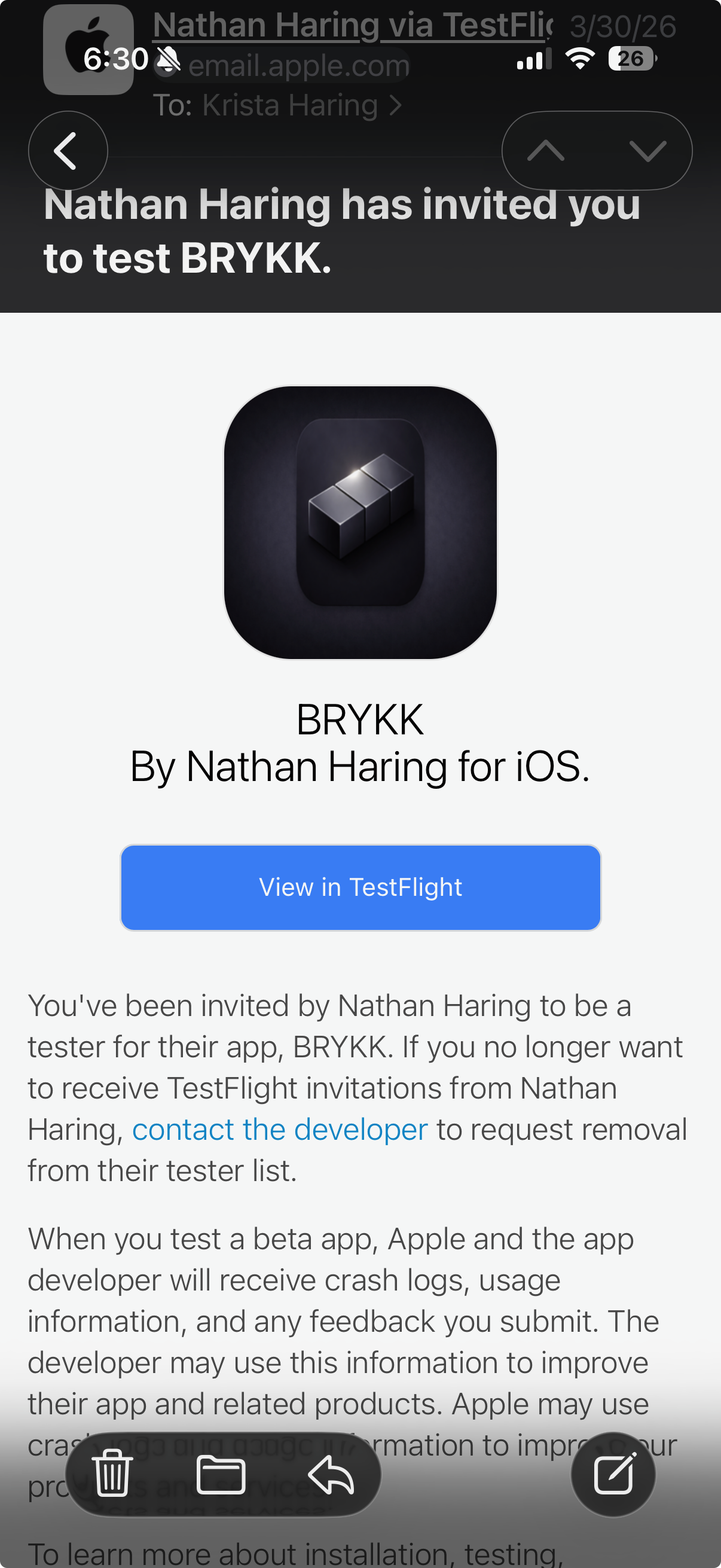
If the icon in the invite email looks older than the website, ignore it. The live beta has already had branding updates. It is still the right app.
Apple Watch comes along automatically.
You do not need a second install flow for Apple Watch. Once BRYKK is on your iPhone, the Watch app comes with it on a paired device.
Apple Watch setup
Install BRYKK on iPhone through TestFlight.
Wait for the Watch app to sync to your paired watch.
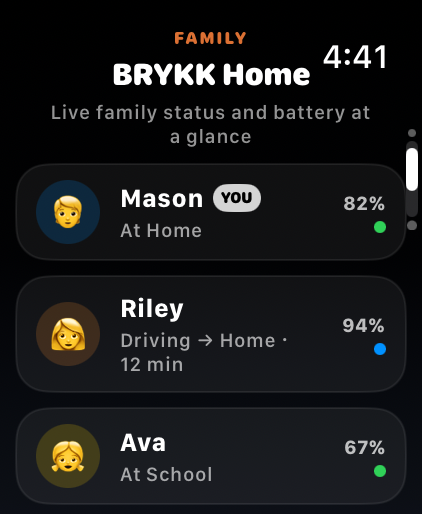
Open BRYKK on your wrist and verify you can see family status and emergency entry points.
What BRYKK can't do, and why.
A few realities are baked into iOS and the hardware in each device. Setting expectations honestly so you know what to look for and where to spend your money.
iPhone is most accurate
The largest GPS antenna, the most satellite constellations, motion-sensor fusion. iPhone keeps tracking smooth in tunnels, parking garages, and urban canyons. Use iPhone as the primary BRYKK device whenever possible.
Cellular iPad is okay
A real GPS receiver, but smaller antenna and fewer satellites than iPhone. Outdoor accuracy is generally good (10–30 m). Indoor or stationary accuracy can be 2–3× wider than iPhone, so positions can wobble more on the map.
Wi-Fi-only iPad has no GPS
Wi-Fi-only iPads ship without a GPS chip. Apple estimates position from nearby Wi-Fi networks and the iPad's IP address — accuracy is ~30–100 m near a known network and can be hundreds of meters off when away from Wi-Fi. Keep these as a household viewing screen, not your primary BRYKK device.
A few iOS behaviors are out of our hands and worth knowing about:
- Always Location is required for arrivals, departures, dead-zone resume, and crash detection. While Using only is not enough — those features need iOS to wake BRYKK in the background.
- Force-quitting BRYKKpauses tracking until you reopen it. iOS treats a swipe-up kill as a strong “don't run” signal. One reopen resumes everything.
- Low Power Mode and Low Data Mode both delay BRYKK pushes. Apple throttles silent CloudKit pushes aggressively in either mode.
- Carrier and Wi-Fi dead zones queue updates locally. You'll see a burst of catch-up activity when signal returns rather than missing data.
The answers people usually need before they stop overthinking it.
Keep this page handy when you are getting a whole family installed. Most problems are one of the few below.
Install it. Get your people in. Then read the family guide.
The setup gets BRYKK on the device. The guide is where your family learns what saved places, shared trips, arrivals, departures, crash detection, and Live Activities actually mean day to day.